Tuesday, July 2, 2013

Android Live Wallpaper Tutorial

Live wallpapers   - are  richer, animated, interactive backgrounds on Homescreen.

In this post I will describe step by step "How to Create LiveWallpaper " .

  The Android Development Tutorials blog contains Basic as well as Advanced android tutorials.Go to Android Development Tutorials to get list of all Android Tutorials.


Android Live Wallpaper Example


In this example I have created a LiveWallpaper in which a Fish  is moving left to right.
The example is too simple and has been described in manner that you can easily  understand.
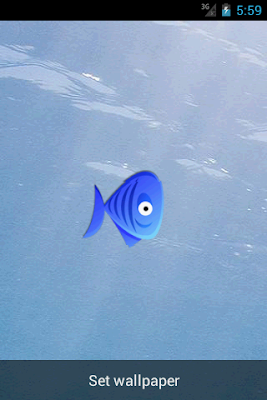
Android Live  Wallpaper


How to create a Live Wallpaper

Step 1: create a xml file which will describe your wallpaper.
Step 2: edit your manifest file add service and feature.
Step 3: create a service class which extends WallpaperService class.


Step 1:  create a xml folder inside res folder.
              inside xml folder create mywallpaper.xml file

             <?xml version="1.0" encoding="UTF-8"?>
            <wallpaper
                     xmlns:android="http://schemas.android.com/apk/res/android"
                     android:thumbnail="@drawable/fish"
                     android:description="@string/wallpaper_description" 
            />

here thumbnail is the image that will be shown in list of livewallpapers and description attribute is the description of your live wallpaper.

Also add following in your string.xml file inside values folder
<string name="wallpaper_description">Fish Aquarium</string>

Step 2: Edit your Manifest.xml

<manifest xmlns:android="http://schemas.android.com/apk/res/android"
    package="com.example.livewallpapertutorial"
    android:versionCode="1"
    android:versionName="1.0" >

    <uses-sdk
        android:minSdkVersion="8"
        android:targetSdkVersion="16" />

     <uses-feature
        android:name="android.software.live_wallpaper"
        android:required="true" >
    </uses-feature>


    <application
        android:icon="@drawable/ic_launcher"
        android:label="@string/app_name"
        android:theme="@style/AppTheme" >
        <service
            android:name="LiveWallpaperService"
            android:enabled="true"
            android:label="Wallpaper Example "
            android:permission="android.permission.BIND_WALLPAPER" >
            <intent-filter>
                <action android:name="android.service.wallpaper.WallpaperService" >
                </action>
            </intent-filter>

            <meta-data
                android:name="android.service.wallpaper"
                android:resource="@xml/mywallpaper" >
            </meta-data>

        </service>

    </application>

</manifest>


Step 3: create a service class which extends  WallpaperService.

this class is the base class for all live wallpapers in the system. You must implement the   onCreateEngine()   method .
The Engine class defines the life cycle methods, as for example onCreate(), onSurfaceCreated(), onVisibilityChanged(), onOffsetsChanged(), onTouchEvent() and onCommand()


public class LiveWallpaperService extends WallpaperService
{
                int x,y;
               
                public void onCreate()
                {
                        super.onCreate();
                }

                public void onDestroy()
                {
                        super.onDestroy();
                }

                public Engine onCreateEngine()
                {
                        return new MyWallpaperEngine();
                }

                class MyWallpaperEngine extends Engine
                {

                        private final Handler handler = new Handler();
                        private final Runnable drawRunner = new Runnable() {
                            @Override
                            public void run() {
                                draw();
                            }
                        };
                        private boolean visible = true;
                        public Bitmap image1,backgroundImage;

                        MyWallpaperEngine()
                        {
                                 // get the fish and background image references
                                image1 = BitmapFactory.decodeResource(getResources(),R.drawable.fish);
                                backgroundImage = BitmapFactory.decodeResource(getResources(),R.drawable.background);
                                x=-130; // initialize x position
                                y=200;  // initialize y position
                               
                        }


                        public void onCreate(SurfaceHolder surfaceHolder)
                        {
                                super.onCreate(surfaceHolder);
                        }

                        @Override
                        public void onVisibilityChanged(boolean visible)
                        {
                                this.visible = visible;
                                // if screen wallpaper is visible then draw the image otherwise do not draw
                                if (visible)
                                {
                                    handler.post(drawRunner);
                                }
                                else
                                {
                                    handler.removeCallbacks(drawRunner);
                                }
                        }

                        @Override
                        public void onSurfaceDestroyed(SurfaceHolder holder)
                        {
                                super.onSurfaceDestroyed(holder);
                                this.visible = false;
                                handler.removeCallbacks(drawRunner);
                        }

                        public void onOffsetsChanged(float xOffset, float yOffset, float xStep, float yStep, int xPixels, int yPixels)
                        {
                                draw();
                        }

                        void draw()
                        {
                                final SurfaceHolder holder = getSurfaceHolder();
                 
                                Canvas c = null;
                                try
                                {
                                        c = holder.lockCanvas();
                                        // clear the canvas
                                        c.drawColor(Color.BLACK);
                                        if (c != null)
                                        {
                                                // draw the background image
                                                c.drawBitmap(backgroundImage, 0, 0, null);
                                                // draw the fish
                                                c.drawBitmap(image1, x,y, null);
                                                // get the width of canvas
                                                int width=c.getWidth();
                                               
                                                // if x crosses the width means  x has reached to right edge
                                                if(x>width+100)
                                                {  
                                                        // assign initial value to start with
                                                        x=-130;
                                                }
                                                // change the x position/value by 1 pixel
                                                x=x+1;
                                        }
                                 }
                                finally
                                {
                                        if (c != null)
                                               holder.unlockCanvasAndPost(c);
                                }

                                handler.removeCallbacks(drawRunner);
                                if (visible)
                                {
                                          handler.postDelayed(drawRunner, 10); // delay 10 mileseconds
                                }   

                        }
                }
}


Run the application and set the Wallpaper.( Long Press on Screen ->Set Wallpaper -> HomeScreen -> Live Wallpapers -> select your Live wall paper)
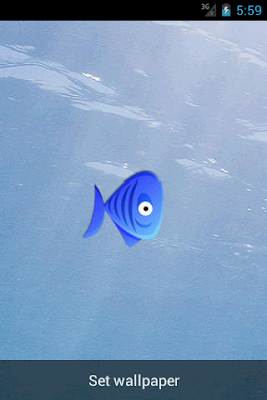
Android Live  Wallpaper


More Android Topics

New Advance Topics:
Android ImageSwitcher                    Android TextSwitcher                                Android ViewFlipper
Android Gesture Detector               Handling/Detecting Swap Events                Gradient Drawable
Detecting Missed Calls                    Hide Title Bar                                           GridView Animation

 Beginning With Android
      Android : Introduction                                                              Configuring Eclipse for Android Development
     Creating Your First Android Project                                           Understanding Android Manifest File of your android app

 Advance Android Topics                                                              Customizing Android Views


Working With Layouts                                                                Working With Views

Understanding Layouts in Android                                                   Using Buttons and EditText in Android
Working with Linear Layout (With Example)                                     Using CheckBoxes in Android
Nested Linear Layout (With Example)                                              Using AutoCompleteTextView in Android                                                                                          Grid View
Relative Layout In Android                                                               ListView
Table Layout                                                                                   Android ProgressBar
Frame Layout(With Example)                                                          Customizing ProgressBar
Absolute Layout                                                                             Customizing Radio Buttons
Grid Layout                                                                                    Customizing Checkboxes In Android

Android Components                                                                 Dialogs In Android

Activity In Android                                                                    Working With Alert Dialog
Activity Life Cycle                                                                    Adding Radio Buttons In Dialog
Starting Activity For Result                                                       Adding Check Boxes In Dialog
Sending Data from One Activity to Other in Android                    Creating Customized Dialogs in Android
Returning Result from Activity                                                   Creating Dialog To Collect User Input
Android : Service                                                                     DatePicker and TimePickerDialog
BroadcastReceiver                                                                   Using TimePickerDialog and DatePickerDialog In android

Menus In Android                                                                ListView:
Creating Option Menu                                                               Populating ListView With DataBase
Creating Context Menu In Android                                              Populating ListView with ArrayList
                                                                                               ListView with Custom Adapter

Toast                                                                                      Working With SMS
Customizing Toast In Android                                                       How to Send SMS in Android
Customizing the Display Time of Toast                                        How To Receive SMS
Customizing Toast At Runtime                                                  Accessing Inbox In Android
Adding Image in Toast
Showing Toast for Longer Time


TelephonyManager                                                            Storage: Storing Data In Android
Using Telephony Manager In Android                                          SharedPreferences In Android
                                                                                              Reading and Writing files to Internal Stoarage
Working With Incoming Calls                                             DataBase
How To Handle Incoming Calls in Android                                Working With Database in Android
How to Forward an Incoming Call In Android                            Creating Table In Android
CALL States In Android                                                          Inserting, Deleting and Updating Records In Table in Android


Miscellaneous
Notifications In Android
How To Vibrate The Android Phone
Sending Email In Android
Opening a webpage In Browser
How to Access PhoneBook In Android
Prompt User Input with an AlertDialog


Thursday, June 27, 2013

Connecting ListView with DataBase

ListView can be populated by ArrayAdapter, Custom Adapter, ArrayList etc
In this post I will describe how to populate ListView with database.

Have a look at my previous post
Populating ListView with Custom Adapter
Populating ListView with ArrayList


ListView with DataBase Example


In this example I have created a listView  and populated it with DataBAse.
Each of the ListView item contain two views
TextView SMS Sender : to show SMS Sender Number
TextView SMSBody : to show the SMS Body/content

Here the ListView shows the all the SMSes with Sender Number and SMSBody.


Add the following permission in your manifest file to read the SMS..
   <uses-permission android:name="android.permission.READ_SMS"/>
   <uses-permission android:name="android.permission.WRITE_SMS"/>


listview_activity_main.xml


<LinearLayout xmlns:android="http://schemas.android.com/apk/res/android"
    android:layout_width="match_parent"
    android:layout_height="match_parent"
    android:background="#D1FFFF"
    android:orientation="vertical">
   
   
    <ListView
        android:id="@+id/listViewSMS"
        android:layout_width="fill_parent"
        android:layout_height="fill_parent"
        android:dividerHeight="0.1dp"
        android:divider="#0000CC"
        >
    </ListView>
   
  </LinearLayout>


listview_each_item.xml


<?xml version="1.0" encoding="utf-8"?>
<LinearLayout xmlns:android="http://schemas.android.com/apk/res/android"
    android:layout_width="match_parent"
    android:layout_height="match_parent"
    android:orientation="vertical" >

    <TextView
        android:id="@+id/textViewSMSSender"
        android:paddingLeft="2dp"
        android:textSize="20dp"
        android:textStyle="bold"
        android:textColor="#0000FF"
        android:layout_width="wrap_content"
        android:layout_height="wrap_content"
        android:text="TextView" />

    <TextView
        android:id="@+id/textViewMessageBody"
        android:paddingLeft="5dp"
        android:textColor="#5C002E"
        android:textSize="17dp"
        android:layout_width="wrap_content"
        android:layout_height="wrap_content"
        android:text="TextView" />

</LinearLayout>
   
  </LinearLayout>


ListViewWithDatabaseActivity 


public class ListViewWithDatabaseActivity extends Activity
{

   
        ListView listViewPhoneBook;
        Context context;
         @Override
        protected void onCreate(Bundle savedInstanceState)
         {
                 super.onCreate(savedInstanceState);
                 setContentView(R.layout.listview_activity_main);
                 context=this;
                 //get the ListView Reference
                 listViewSMS=(ListView)findViewById(R.id.listViewSMS);
                

                  //arrayColumns is the column name in your cursor where you're getting the data 
                  // here we are displaying  SMSsender Number i.e. address and SMSBody i.e. body

                  String[] arrayColumns = new String[]{"address","body"};
                  //arrayViewID contains the id of textViews
                  // you can add more Views as per Requirement
                  // textViewSMSSender is connected to "address" of arrayColumns
                  // textViewMessageBody is connected to "body"of arrayColumns

                  int[] arrayViewIDs = new int[]{R.id.textViewSMSSender,R.id.textViewMessageBody};
                    
                    
                  Cursor cursor;
                  
                    cursor = getContentResolver().query(Uri.parse("content://sms/inbox"), null, null, null, null);
                  
                // create an Adapter with arguments layoutID, Cursor, Array Of Columns, and Array of ViewIds which is to be Populated
                  
                 SimpleCursorAdapter adapter = new SimpleCursorAdapter(this, R.layout.listview_each_item, cursor, arrayColumns, arrayViewIDs);
                 listViewSMS.setAdapter(adapter);


                 // To handle the click on List View Item
                 listViewSMS.setOnItemClickListener(new OnItemClickListener()
                {
                   
                                public void onItemClick(AdapterView<?> arg0, View v,int position, long arg3)
                                {
                                    // when user clicks on ListView Item , onItemClick is called
                                    // with position and View of the item which is clicked
                                    // we can use the position parameter to get index of clicked item

                                    TextView textViewSMSSender=(TextView)v.findViewById(R.id.textViewSMSSender);
                                    TextView textViewSMSBody=(TextView)v.findViewById(R.id.textViewMessageBody);
                                    String smsSender=textViewSMSSender.getText().toString();
                                    String smsBody=textViewSMSBody.getText().toString();
                                  
                                    // Show The Dialog with Selected SMS
                                    AlertDialog dialog = new AlertDialog.Builder(context).create();
                                    dialog.setTitle("SMS From : "+smsSender);
                                    dialog.setIcon(android.R.drawable.ic_dialog_info);
                                    dialog.setMessage(smsBody);
                                    dialog.setButton(DialogInterface.BUTTON_POSITIVE, "OK",
                                            new DialogInterface.OnClickListener() {
                                        public void onClick(DialogInterface dialog, int which)
                                        {
                                      
                                                dialog.dismiss();
                                                return;
                                    }  
                                    });
                                    dialog.show();
                                }
                               
                            });
             }
 }


ListView with Custom Adapter


ListView with Custom Adapter

The Android Development Tutorials blog contains Basic as well as Advanced android tutorials.Go to Android Development Tutorials to get list of all Android Topics.


Populate ListView with Custom Adapter

ListView can be populated by ArrayAdapter, Database, ArrayList etc
In this post I will describe how to populate ListView using a Custom Adapter.

Have a look at my previous post
Populating ListView with Database
Populating ListView with ArrayList

ListView with Custom Adapter Example


In this example I have created a listView  and populated it with Custom Adapter.
Each of the ListView item contain two views
TextView SMS Sender : to show SMS Sender Number
TextView SMSBody : to show the SMS Body/content

Here the ListView shows the all the SMSes with Sender Number and SMSBody.

What we need to do ..
Create a Custom Adapter
and add/set  the adapter to ListView.

Add the following permission in your manifest file to read the SMS..
   <uses-permission android:name="android.permission.READ_SMS"/>
   <uses-permission android:name="android.permission.WRITE_SMS"/>


listview_activity_main.xml


<LinearLayout xmlns:android="http://schemas.android.com/apk/res/android"
    android:layout_width="match_parent"
    android:layout_height="match_parent"
    android:background="#D1FFFF"
    android:orientation="vertical">
   
   
    <ListView
        android:id="@+id/listViewSMS"
        android:layout_width="fill_parent"
        android:layout_height="fill_parent"
        android:dividerHeight="0.1dp"
        android:divider="#0000CC"
        >
    </ListView>
   
  </LinearLayout>


listview_each_item.xml


<?xml version="1.0" encoding="utf-8"?>
<LinearLayout xmlns:android="http://schemas.android.com/apk/res/android"
    android:layout_width="match_parent"
    android:layout_height="match_parent"
    android:orientation="vertical" >

    <TextView
        android:id="@+id/textViewSMSSender"
        android:paddingLeft="2dp"
        android:textSize="20dp"
        android:textStyle="bold"
        android:textColor="#0000FF"
        android:layout_width="wrap_content"
        android:layout_height="wrap_content"
        android:text="TextView" />

    <TextView
        android:id="@+id/textViewMessageBody"
        android:paddingLeft="5dp"
        android:textColor="#5C002E"
        android:textSize="17dp"
        android:layout_width="wrap_content"
        android:layout_height="wrap_content"
        android:text="TextView" />

</LinearLayout>
   
  </LinearLayout>


ListViewMainActivity.java


public class ListViewMainActivity extends Activity
{
            ListView listViewSMS;
            Cursor cursor;
            SMSListAdapter smsListAdapter;
            Context context;
            @Override
            protected void onCreate(Bundle savedInstanceState)
            {
                    super.onCreate(savedInstanceState);
                    setContentView(R.layout.listview_activity_main);
                   
                    context=this;
                    listViewSMS=(ListView)findViewById(R.id.listViewSMS);

                    cursor = getContentResolver().query(Uri.parse("content://sms/inbox"), null, null, null, null);
                   
                    // Create the Adapter
                    smsListAdapter=new SMSListAdapter(this,cursor);
                   
                    // Set The Adapter to ListView
                    listViewSMS.setAdapter(smsListAdapter);
                    

                    // to handle click event on listView item
                    listViewSMS.setOnItemClickListener(new OnItemClickListener()
                    {
                            public void onItemClick(AdapterView<?> arg0, View v,int position, long arg3)
                            {
                                // when user clicks on ListView Item , onItemClick is called
                                // with position and View of the item which is clicked
                                // we can use the position parameter to get index of clicked item

                                TextView textViewSMSSender=(TextView)v.findViewById(R.id.textViewSMSSender);
                                TextView textViewSMSBody=(TextView)v.findViewById(R.id.textViewMessageBody);
                                String smsSender=textViewSMSSender.getText().toString();
                                String smsBody=textViewSMSBody.getText().toString();
                               
                                // Show The Dialog with Selected SMS
                                AlertDialog dialog = new AlertDialog.Builder(context).create();
                                dialog.setTitle("SMS From : "+smsSender);
                                dialog.setIcon(android.R.drawable.ic_dialog_info);
                                dialog.setMessage(smsBody);
                                dialog.setButton(DialogInterface.BUTTON_POSITIVE, "OK",
                                        new DialogInterface.OnClickListener() {
                                    public void onClick(DialogInterface dialog, int which)
                                    {
                                   
                                            dialog.dismiss();
                                            return;
                                }   
                                });
                                dialog.show();
                            }
                        });
       
            }
}


SMSListAdapter.java : The Custom Adapter


public class SMSListAdapter  extends BaseAdapter
{
   
    private Context mContext;
    Cursor cursor;
    public SMSListAdapter(Context context,Cursor cur)
    {
            super();
            mContext=context;
            cursor=cur;
          
    }
      
    public int getCount()
    {
        // return the number of records in cursor
        return cursor.getCount();
    }

    // getView method is called for each item of ListView
    public View getView(int position,  View view, ViewGroup parent)
    {
                    // inflate the layout for each item of listView
                    LayoutInflater inflater = (LayoutInflater) mContext.getSystemService(Context.LAYOUT_INFLATER_SERVICE);
                    view = inflater.inflate(R.layout.listview_each_item, null);
           
                    // move the cursor to required position
                    cursor.moveToPosition(position);
                   
                    // fetch the sender number and sms body from cursor
                    String senderNumber=cursor.getString(cursor.getColumnIndex("address"));
                    String smsBody=cursor.getString(cursor.getColumnIndex("body"));
                  
                    // get the reference of textViews
                    TextView textViewConatctNumber=(TextView)view.findViewById(R.id.textViewSMSSender);
                    TextView textViewSMSBody=(TextView)view.findViewById(R.id.textViewMessageBody);
                   
                    // Set the Sender number and smsBody to respective TextViews
                    textViewConatctNumber.setText(senderNumber);
                    textViewSMSBody.setText(smsBody);
                   
       
                    return view;
    }

    public Object getItem(int position) {
        // TODO Auto-generated method stub
        return position;
    }

    public long getItemId(int position) {
        // TODO Auto-generated method stub
        return position;
    }
}

ListView with Custom Adapter


New Advance Topics:                   Android LiveWallpaer Tutorial
Android ImageSwitcher                    Android TextSwitcher                                Android ViewFlipper
Android Gesture Detector               Handling/Detecting Swipe Events                Gradient Drawable
Detecting Missed Calls                    Hide Title Bar                                           GridView Animation
Android AlarmManager                 Android BootReceiver                       Vibrate Phone In a Desirable Pattern    
Developing for Different Screen Sizes           Showing Toast for Longer Time       Publishing your App
How to publish Android App on Google Play
Android TextWatcher                               Android ExpandableListView

 Beginning With Android
      Android : Introduction(What is Android)                                                              Configuring Eclipse for Android Development
     Creating Your First Android Project                                           Understanding Android Manifest File of your android app

 Advance Android Topics                                                              Customizing Android Views


Working With Layouts                                                                Working With Views

Understanding Layouts in Android                                                   Using Buttons and EditText in Android
Working with Linear Layout (With Example)                                     Using CheckBoxes in Android
Nested Linear Layout (With Example)                                              Using AutoCompleteTextView in Android                                                                                          Grid View
Relative Layout In Android                                                               ListView
Table Layout                                                                                   Android ProgressBar
Frame Layout(With Example)                                                          Customizing ProgressBar
Absolute Layout                                                                             Customizing Radio Buttons
Grid Layout                                                                                    Customizing Checkboxes In Android

Android Advance Views
Android Spinner                                                                           Android GalleryView
Android TabWidget                                                                      Android ExpandableListView

Android Components                                                                 Dialogs In Android

Activity In Android                                                                    Working With Alert Dialog
Activity Life Cycle                                                                    Adding Radio Buttons In Dialog
Starting Activity For Result                                                       Adding Check Boxes In Dialog
Sending Data from One Activity to Other in Android                    Creating Customized Dialogs in Android
Returning Result from Activity                                                   Creating Dialog To Collect User Input
Android : Service                                                                     DatePicker and TimePickerDialog
BroadcastReceiver                                                                   Using TimePickerDialog and DatePickerDialog In android

Menus In Android                                                                ListView:
Creating Option Menu                                                               Populating ListView With DataBase
Creating Context Menu In Android                                              Populating ListView with ArrayList
                                                                                               ListView with Custom Adapter

Toast                                                                                      Working With SMS
Customizing Toast In Android                                                       How to Send SMS in Android
Customizing the Display Time of Toast                                        How To Receive SMS
Customizing Toast At Runtime                                                  Accessing Inbox In Android
Adding Image in Toast
Showing Toast for Longer Time


TelephonyManager                                                            Storage: Storing Data In Android
Using Telephony Manager In Android                                          SharedPreferences In Android
                                                                                              Reading and Writing files to Internal Stoarage

Working With Incoming Calls                                       DataBase :  Introduction of SQLiteDataBase
How To Handle Incoming Calls in Android                                Working With Database in Android
How to Forward an Incoming Call In Android                            Creating Table In Android
CALL States In Android                                                          Inserting, Deleting and Updating Records In Table in Android


Miscellaneous
Notifications In Android
How To Vibrate The Android Phone
Sending Email In Android
Opening a webpage In Browser
How to Access PhoneBook In Android
Prompt User Input with an AlertDialog
How to Hide Title Bar In Android
How to show an Activity in Landscape or Portrait Mode only.
How to Set an Image as Wallpaper.


Wednesday, June 26, 2013

Android GestureDetector Example

In android can listen to the gestures and events performed by user on screen.

To listen the Gestures in Android we need to do 3 things
1: Create Class GestureListener which should extends GestureDetector.SimpleOnGestureListener
2: Override s all the callback methods of GestureDetector.SimpleOnGestureListener
3:  Bind the gestureDetector to GestureListener

 GestureListener.java


class GestureListener extends GestureDetector.SimpleOnGestureListener
{
   
       static String currentGestureDetected;
      
      // Override s all the callback methods of GestureDetector.SimpleOnGestureListener
      @Override
      public boolean onSingleTapUp(MotionEvent ev) {
          currentGestureDetected=ev.toString();
      
        return true;
      }
      @Override
      public void onShowPress(MotionEvent ev) {
          currentGestureDetected=ev.toString();
       
      }
      @Override
      public void onLongPress(MotionEvent ev) {
          currentGestureDetected=ev.toString();
      
      }
      @Override
      public boolean onScroll(MotionEvent e1, MotionEvent e2, float distanceX, float distanceY) {
          currentGestureDetected=e1.toString()+ "  "+e2.toString();
     
        return true;
      }
      @Override
      public boolean onDown(MotionEvent ev) {
          currentGestureDetected=ev.toString();
       
        return true;
      }
      @Override
      public boolean onFling(MotionEvent e1, MotionEvent e2, float velocityX, float velocityY) {
          currentGestureDetected=e1.toString()+ "  "+e2.toString();
        return true;
      }
}


MainActivity.java

public class MainActivity extends Activity
{
          
            private GestureDetector mGestureDetector;
            @Override
            protected void onCreate(Bundle savedInstanceState)
            {
                    super.onCreate(savedInstanceState);
                    setContentView(R.layout.activity_main);
                   
                    // Bind the gestureDetector to GestureListener
                    mGestureDetector = new GestureDetector(this, new GestureListener());
            }

            // onTouch() method gets called each time you perform any touch event with screen
            @Override
            public boolean onTouchEvent(MotionEvent event)
            {
                //method onTouchEvent of GestureDetector class Analyzes the given motion event
                //and if applicable triggers the appropriate callbacks on the GestureDetector.OnGestureListener supplied.
                //Returns true if the GestureDetector.OnGestureListener consumed the event, else false
.
               
                boolean eventConsumed=mGestureDetector.onTouchEvent(event);
                    if (eventConsumed)
                    {
                        Toast.makeText(this,GestureListener.currentGestureDetected,Toast.LENGTH_LONG).show();
                        return true;
                    }
                    else
                        return false;
            }
}